How to change the user agent in Chrome
There are three ways: DevTools, a command-line flag, and an extension. They do not change the same things. We tested each one and list what a website still sees.
--user-agent flag changes the user-agent string only. In our test, Client Hints still reported the real browser and platform.1. DevTools (one tab, while DevTools is open)
Chrome's own developer tools can override the user agent. These steps follow Chrome's documentation:
- Open DevTools (F12, or Ctrl+Shift+I on Windows and Linux, ⌘+Option+I on a Mac).
- Open the Network conditions panel. You can find it from the command menu: press Ctrl+Shift+P (⌘+Shift+P on a Mac) and type "network conditions".
- In User agent, clear Use browser default.
- Pick a user agent from the list or type your own.
- Optional: open User agent client hints, edit the values and click Update.
- Reload the page.
Good for: checking how one page reacts. Less good for: everyday browsing. The override belongs to the DevTools session of that tab, so you set it up again each time.
2. The --user-agent command-line flag (all tabs)
Chrome and other Chromium browsers accept a start-up flag that replaces the user-agent string for the whole browser. Close every Chrome window first, then start Chrome from a terminal. On Windows:
"C:\Program Files\Google\Chrome\Application\chrome.exe" --user-agent="Mozilla/5.0 (iPhone; CPU iPhone OS 18_0 like Mac OS X) AppleWebKit/605.1.15 (KHTML, like Gecko) Version/18.0 Mobile/15E148 Safari/604.1"On a Mac:
open -na "Google Chrome" --args --user-agent="Mozilla/5.0 (iPhone; CPU iPhone OS 18_0 like Mac OS X) AppleWebKit/605.1.15 (KHTML, like Gecko) Version/18.0 Mobile/15E148 Safari/604.1"Your install path may differ. The flag only lasts until Chrome is closed.
What the flag leaves behind (our test)
We started Chromium 145 and Microsoft Edge 157 on Windows with the iPhone user agent above, loaded a test page and recorded what it received. Both browsers gave the same result:
| Where the site looks | Changed to iPhone? | What it still said |
|---|---|---|
User-Agent header | Yes | iPhone Safari |
navigator.userAgent | Yes | iPhone Safari |
navigator.platform | No | Win32 |
Sec-CH-UA header | No | The real browser name and version |
Sec-CH-UA-Platform header | No | "Windows" |
Sec-CH-UA-Mobile header | No | ?0 (not mobile) |
navigator.userAgentData | No | Windows, not mobile, real browser |
A real iPhone sends no Client Hints at all, because Safari does not support them. So a site that compares these values sees an "iPhone" that reports Windows. More on this in why user agent switchers seem not to work.
3. An extension (all tabs, stays after a restart)
An extension is the easiest choice for browsing as another device over time. Check what it changes, though. Many switchers change only the header, or only the header and navigator.userAgent.
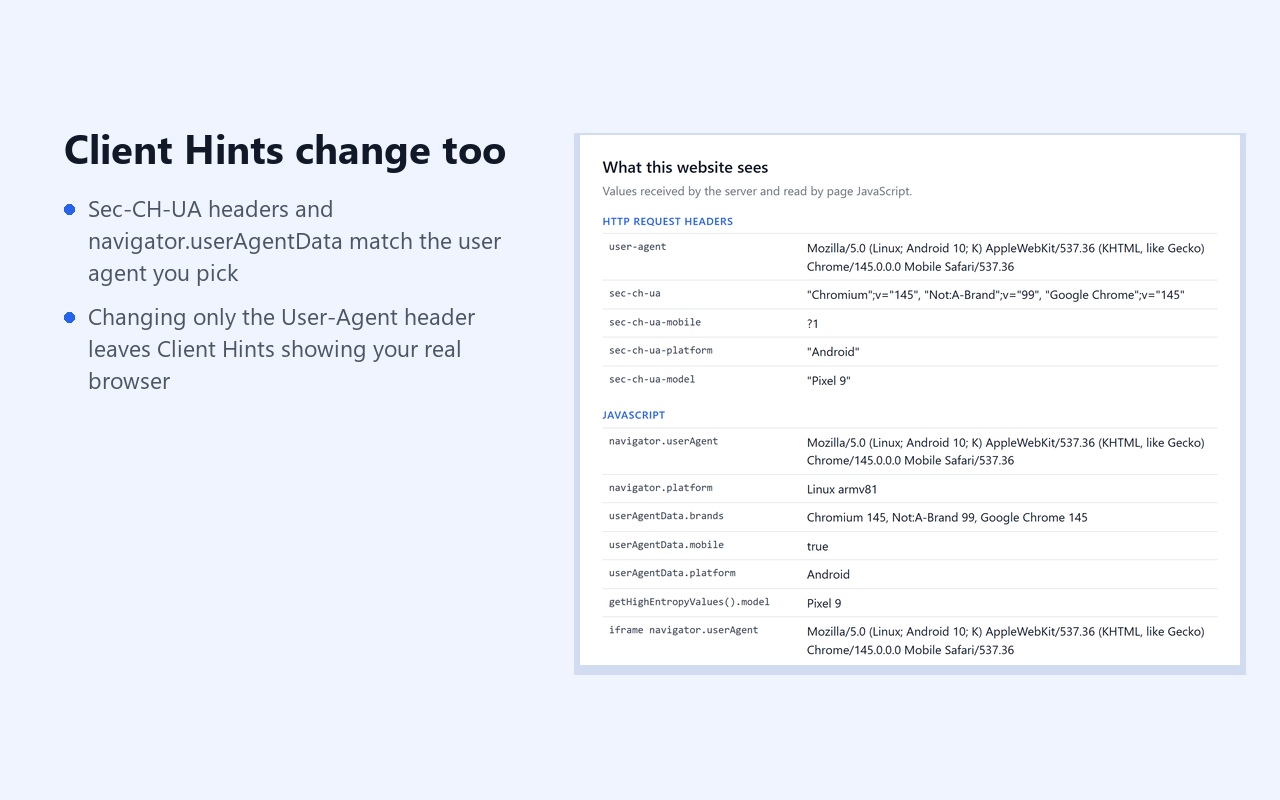
We make User-Agent Switcher — UA + Client Hints. It changes the header, navigator, iframes and the Client Hints together, so the values agree. Choosing Safari or Firefox removes the Chrome-only Client Hints, as a real Safari or Firefox would. Your choice stays after a restart.
Get it on the Chrome Web Store
- Free: 13 built-in user agents, one-click on/off, a badge that shows what is active
- Pro, $7.99 once: per-site rules, your own user-agent strings, export and import
- Limits: web workers, fonts, screen size and WebGL still show your real device. It is not an anonymity tool.
Check the result
Whatever method you use, open our user agent checker. It shows the header, JavaScript and Client Hints values side by side and flags any that disagree.