Chrome lost all your tabs? Try these first
Steps for Chrome on Windows, Mac and Linux. Try them in order, and don't close any more windows while you do.
1. Reopen closed tabs
Press Ctrl+Shift+T (⌘+Shift+T on a Mac). Chrome reopens previously closed tabs in the order they were closed. Press it again to go further back.
2. Check your tab groups
If your tabs were in groups, click More (⋮) › Tab groups. Google's help says a closed group isn't deleted; it stays in this menu or in the bookmarks bar. More in How to save tab groups in Chrome.
3. Search your History
Press Ctrl+H (⌘+Y on a Mac). History lists the pages you visited on Chrome in the last 90 days. Search for a word from the page title or the site name, and reopen what you need.
Make sure it doesn't happen again
Turn on "Continue where you left off"
In Settings › On startup, choose Continue where you left off. Chrome then reopens the pages you had open when you quit.
Keep saved copies of your sessions
Startup restore keeps only your last session. If Chrome opens with a blank window, or you close the wrong window, it can't help. A session manager keeps copies you can go back to.
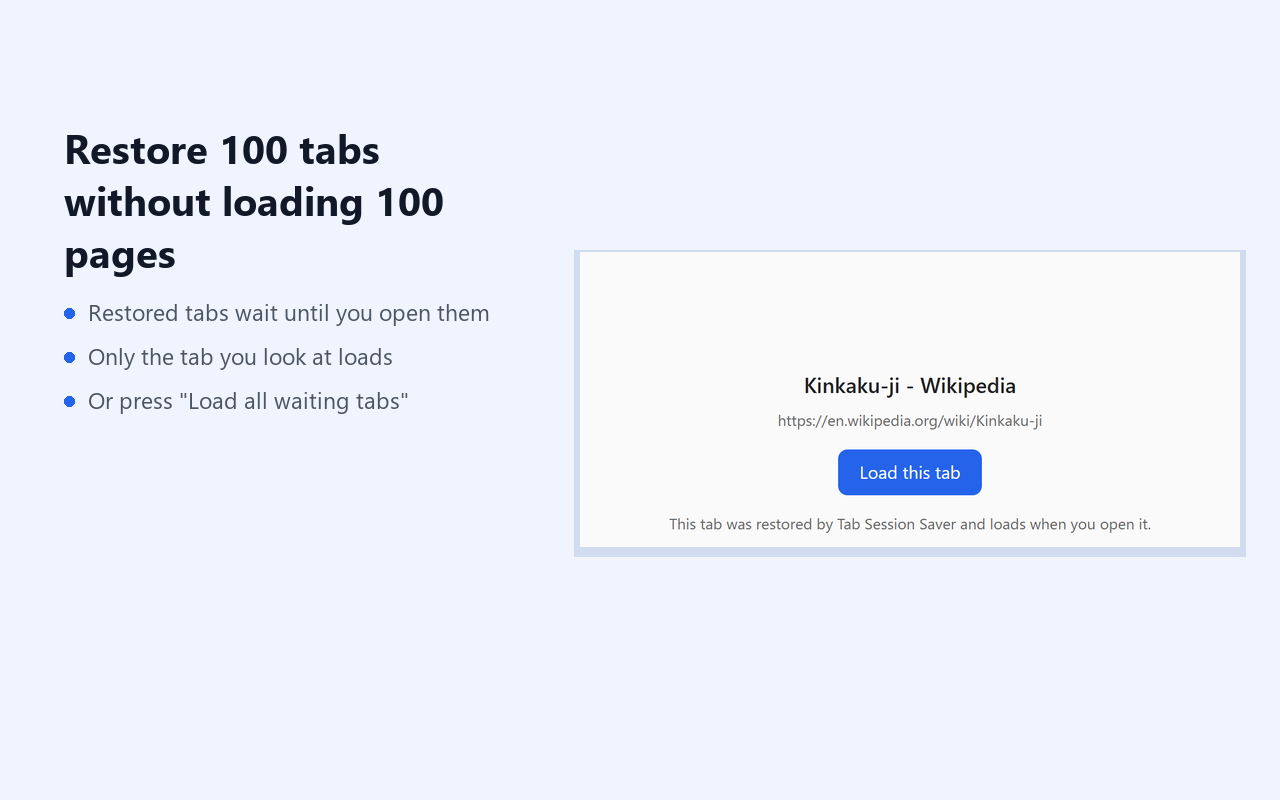
We make Tab Session Saver for this. It autosaves your windows every 1 to 30 minutes (5 by default), with tab groups, pinned tabs and tab order. The autosaves from before your last 3 browser restarts are kept apart from the newer ones, so a fresh start can't push them out. Restore lets tabs wait until you open them, so a big session comes back quickly.
Get it on the Chrome Web Store
Free: 10 named sessions and 3 autosaves. Pro, $6.99 once: unlimited sessions, 50 autosaves and JSON export. It can't bring back tabs from before you installed it.