How to save tab groups in Chrome and get them back
Chrome on a computer already keeps your tab groups. The trick is to close a group, not delete it. Here is how, based on Google's Chrome help.
Close a group to keep it for later
- Right-click the group name in the tab strip.
- Choose Close group.
Google's help says a closed group isn't deleted. It is saved in the bookmarks bar or in the menu. If you are signed in and sync your history and tabs, changes to tab groups are saved and synced to your other devices.
Reopen a closed group
- From the menu: click More (⋮) › Tab groups, then the group name.
- From the bookmarks bar: click the grid icon, then the group name. If you don't see it, turn on Show tab groups in bookmarks bar in Settings › Appearance.
Don't delete it by mistake
Delete group is different from Close group. Google's help warns that a deleted group is removed on your device and on your other devices that use the same Google Account.
What this doesn't cover
Chrome's saved groups are made for groups. They are less useful if you want to:
- keep tabs that are not in any group, together with your groups;
- save a whole window, or all windows, under one name;
- go back to how things looked yesterday, after the group has changed.
For those, Continue where you left off (Settings › On startup) reopens your last session when Chrome starts. To keep named copies of a session, use a session manager.
Save whole sessions with groups intact
We make Tab Session Saver, a Chrome extension that saves your windows and tabs under a name. Group names, colors, collapsed state, pinned tabs and tab order come back on restore. You can restore everything, one window, or a single tab.
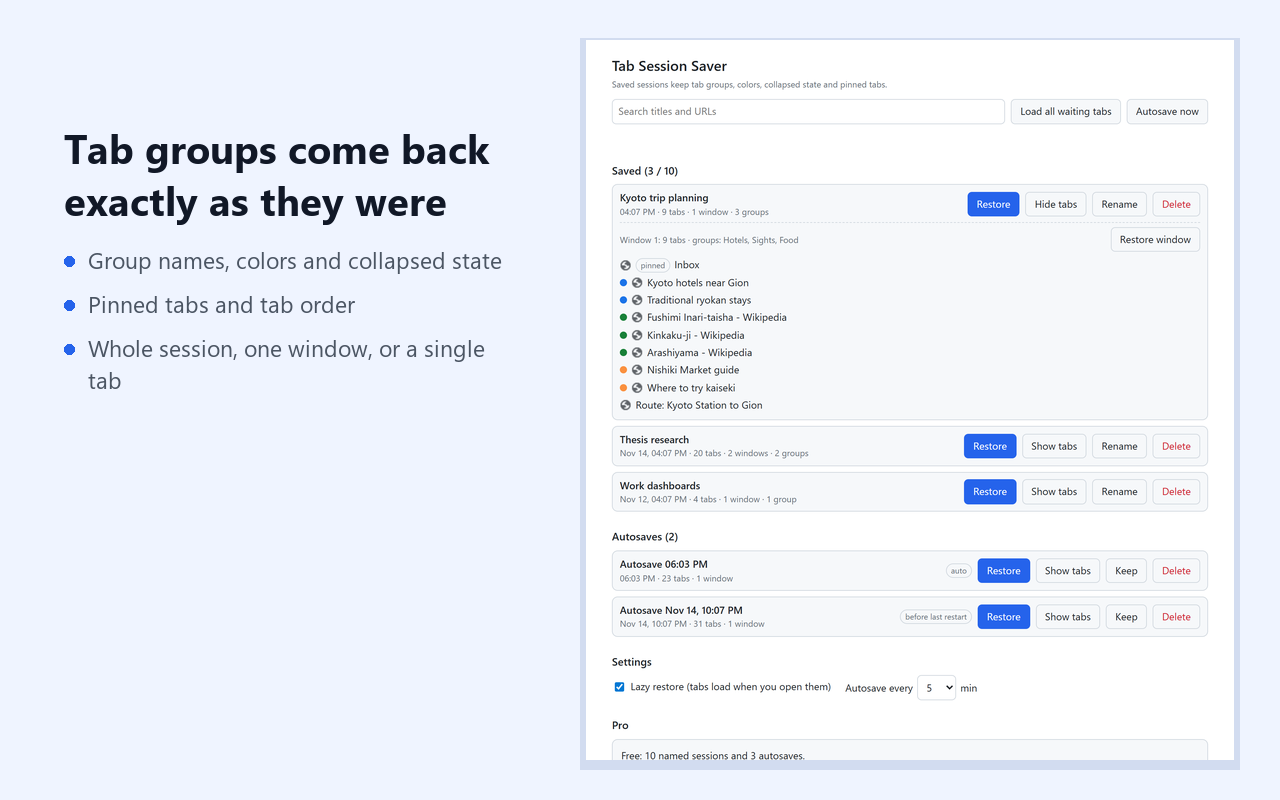
- Autosave every 1 to 30 minutes (5 by default). Autosaves from before your last 3 browser restarts are kept separately.
- Lazy restore: only the tab you open loads; the rest wait with their title, so a 100-tab session doesn't load 100 pages at once.
- Free: 10 named sessions and 3 autosaves. Pro, $6.99 once: unlimited sessions, 50 autosaves and JSON export.
- Sessions stay in your browser. Nothing is sent anywhere.
Get it on the Chrome Web Store
Lost your tabs already? See Chrome lost all your tabs: what to try first.